SQL Sandbox
To use Timextender and complete the training, you need a target data storage resource.
Do I need a sandbox?
| For whom | What you do | |
|---|---|---|
| Sandbox | Individual learners | Continue with this module to set up the free SQL Server Developer Edition on your local Windows machine. No cloud hosting or extra billing. |
| Reference architecture | Multiple users | A client-server setup is recommended: a central server such as a cloud VM hosts the database and the Ingest Service. Choose a platform below for a scalable, production-ready environment. |
For the multi-user route, pick a reference architecture in these docs: Azure SQL · Azure Synapse · Snowflake · on-premise SQL Server · AWS RDS. Fabric storage is covered in Using Fabric SQL Database as Storage for Prepare Instances.
Start on your Windows machine
You can configure a sandbox on nearly any existing Windows machine — physical or virtual, with personal or server editions of Windows.
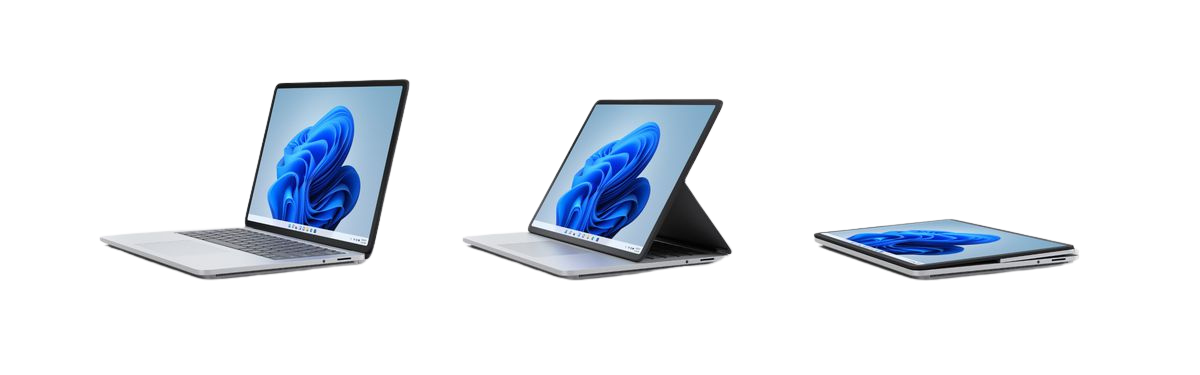
Minimum specifications:
- CPU: 2.0 GHz
- Memory: 8 GB
- Storage: 32 GB of available disk space
Download SQL Server
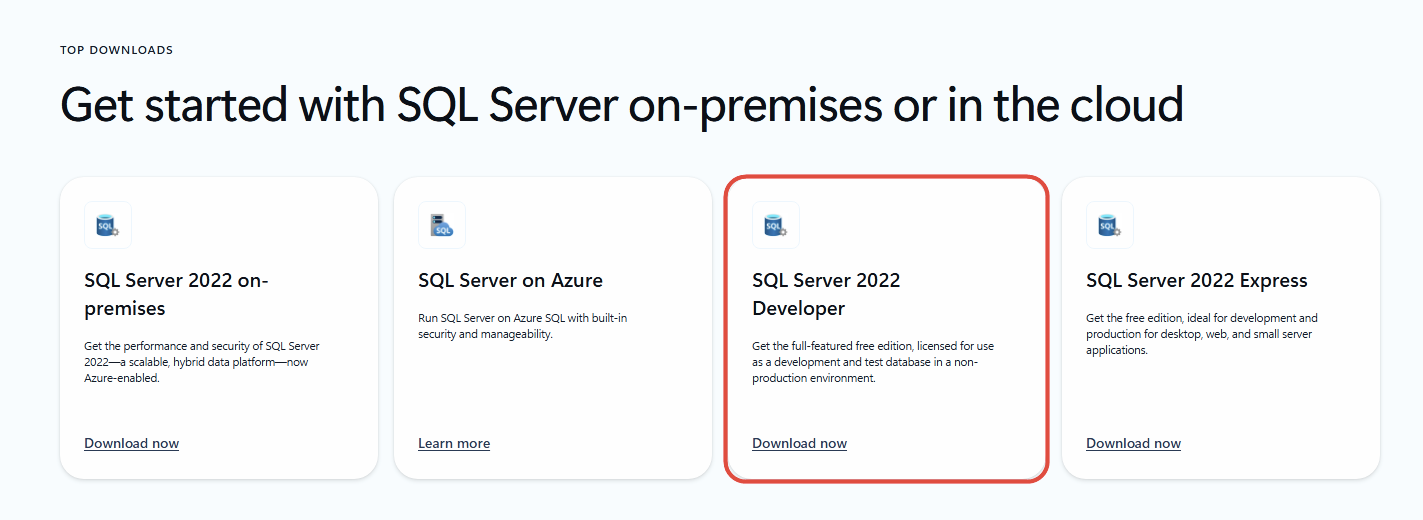
- Go to the SQL Server Downloads page.
- Select SQL Server Developer.
- Run the installer.
Unpack the SQL installer
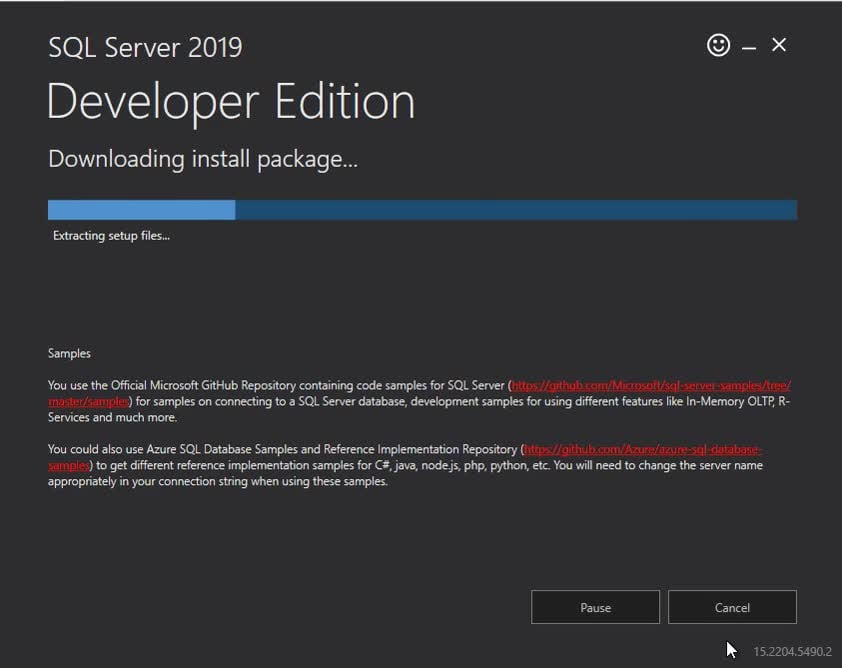
- Run the SQL Server installation.
- Click Custom.
- Click Install.
Select a new stand-alone SQL instance
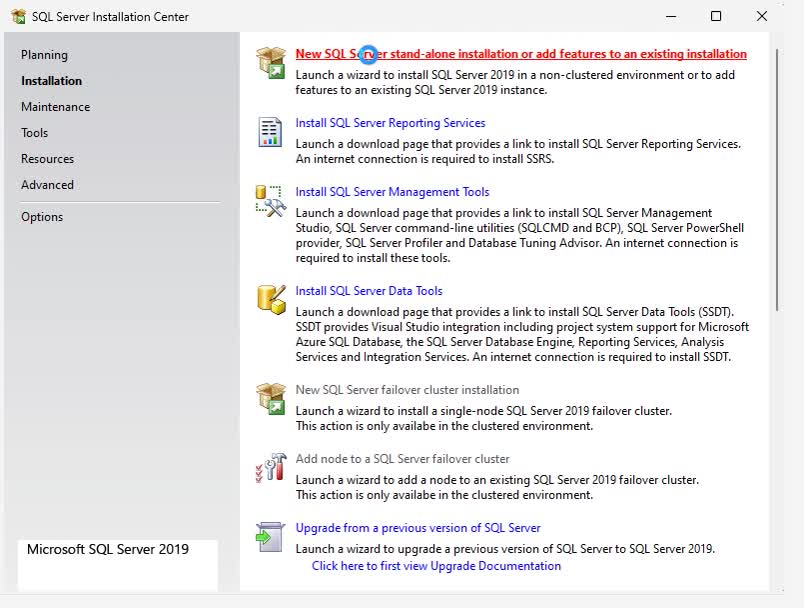
- SQL Server Installation Center opens.
- Click Installation.
- Click New SQL Server stand-alone installation.
- Click Next.
Select SQL Server features
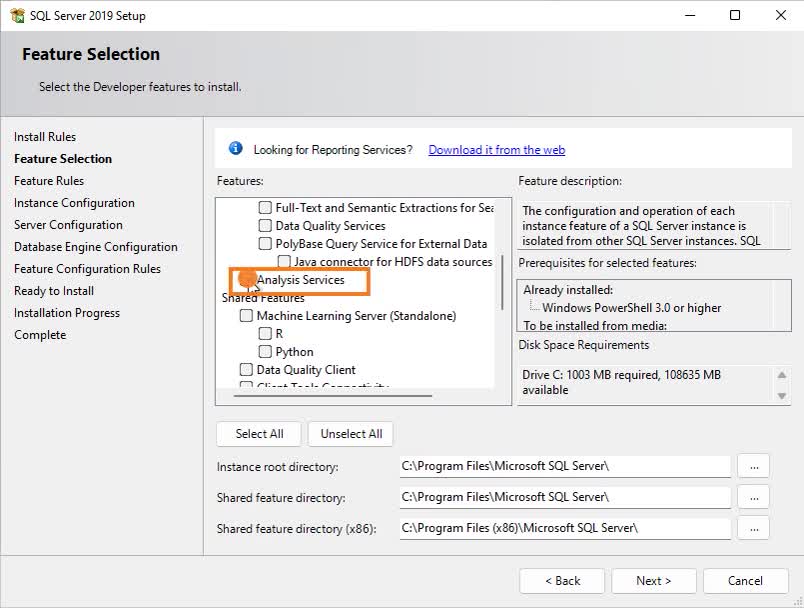
- Under Feature Selection, select Database Engine Services.
- Select Analysis Services.
- Click Next.
Database configuration
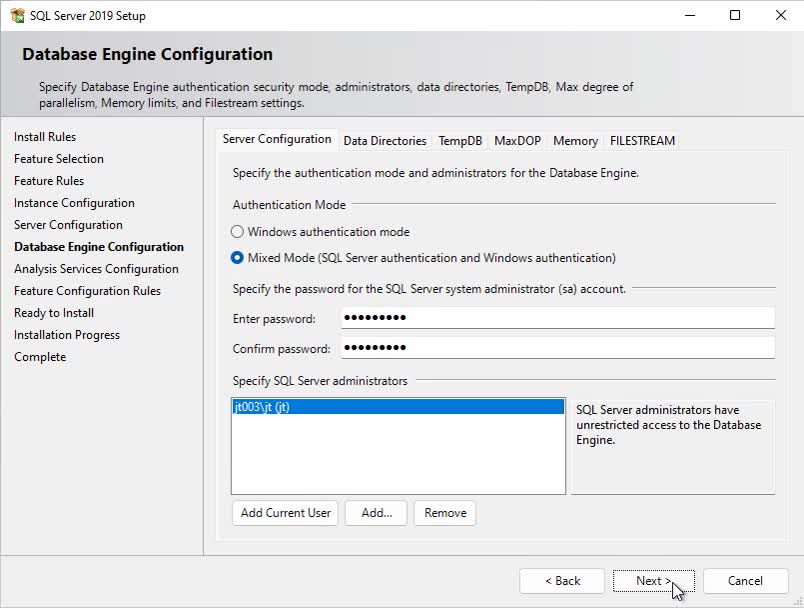
- Under Instance Configuration, select Default Instance, then Next.
- Under Database Engine Configuration, select Mixed Mode.
- Create a password.
- Note the username (
sa) and password — you need them later. - Click Add Current User, then Next, then Next.
SSAS configuration
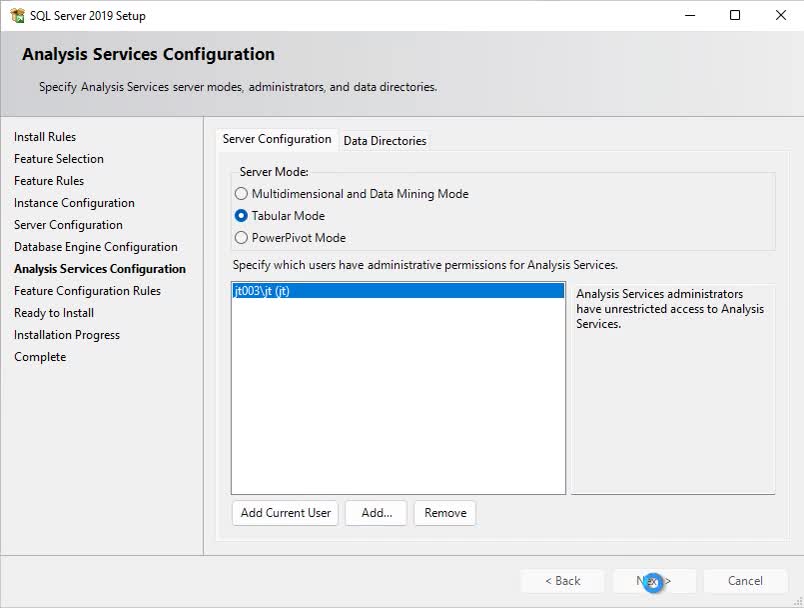
- Under Analysis Services Configuration, select Tabular Mode.
- Click Add Current User, then Next.
- At Ready to Install, click Install.
Related: Use Azure Analysis Services for the cloud equivalent.
Next in the course
Install & Configure · Portal · Ingest Instance
Discussed in the community
Looking for related questions…
Didn't find your answer? Ask the community about this page — questions are answered by Timextender experts, partners and other users.