Sales Transactions
Denormalizing fact tables, creating calculated fields, and custom views.
In this module: adding sales tables to DSA · creating relationships and lookups · calculated fields
Transaction table granularity
Most business processes happen in batches. At a grocery store you pick up ten items and buy them all at once. Transactions work this way across business: a single "order" or "header" transaction, containing multiple detailed line items. In databases that's a set of related tables, each with its own granularity.
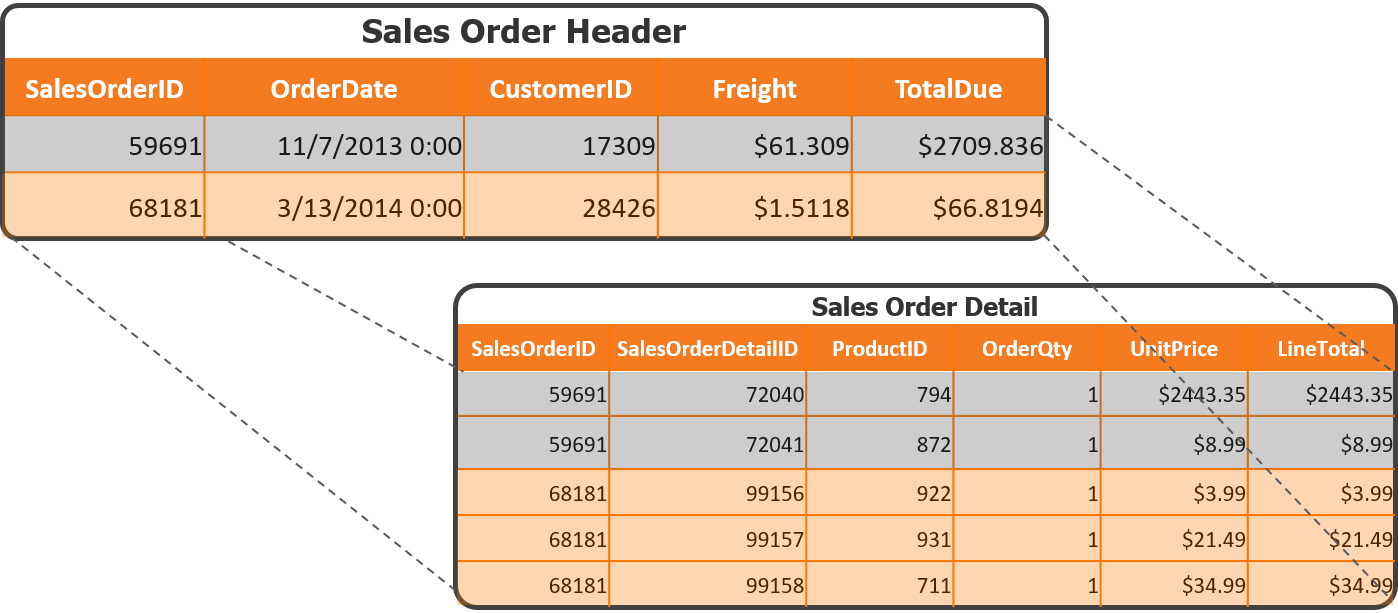
In AdventureWorks this is the SalesOrderHeader table, with the granularity of one sales order, and the SalesOrderDetail table, with the finer granularity of one item sold.
To reach a star schema and simplify analysis, denormalize the lower-granularity header values down into the higher-granularity detail table.
Add the sales order tables to DSA
- Open the Table Selector for the Ingest instance.
- Search
Salesorder. - Select SalesOrderHeader and SalesOrderDetail and add them to the DSA tables.
- Reorder them after the Product table, as:
SalesOrderHeader, thenSalesOrderDetail.
Create relations and lookups
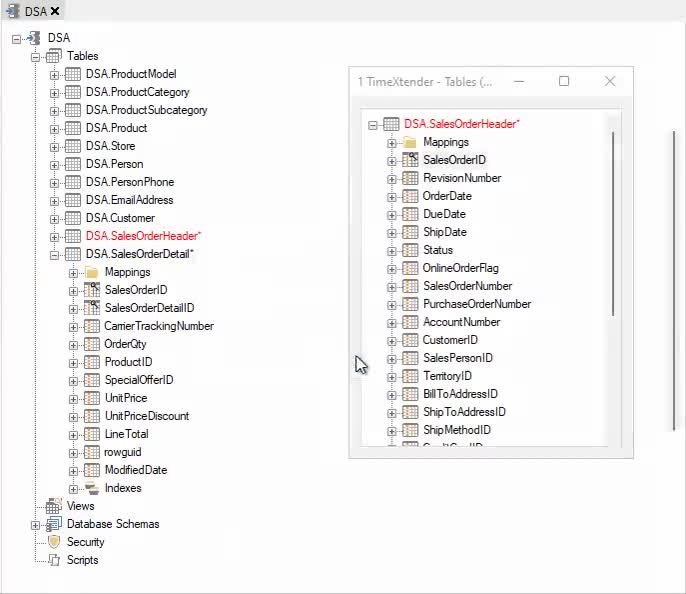
- Create a relation from
SalesOrderHeader.SalesOrderIDtoSalesOrderDetail.SalesOrderID. - Add these fields as lookups on
SalesOrderDetail:OrderDateShipDateOnlineOrderFlagCustomerIDSalesPersonID
Create a calculated field
Field transformations let you modify existing data in many ways — reverse the sign of numeric values, trim fields, return a set number of characters, and so on.
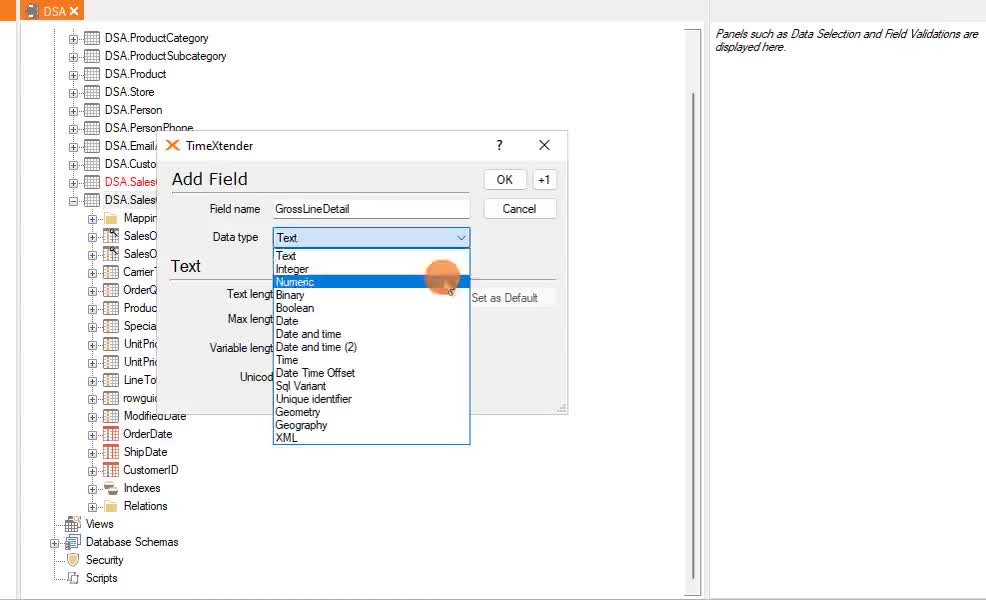
- Add a new field to
SalesOrderDetail. - Field name:
GrossLineTotal. - Data type: numeric.
- Open Field Transformations for
GrossLineTotal. - Select Custom Value and click Add.
- Multiply order quantity by unit price:
- Deploy and execute.
Create a custom view
Custom views are a powerful way to bring in custom SQL. Use parameters wherever possible, then map the custom view fields so data lineage is maintained.
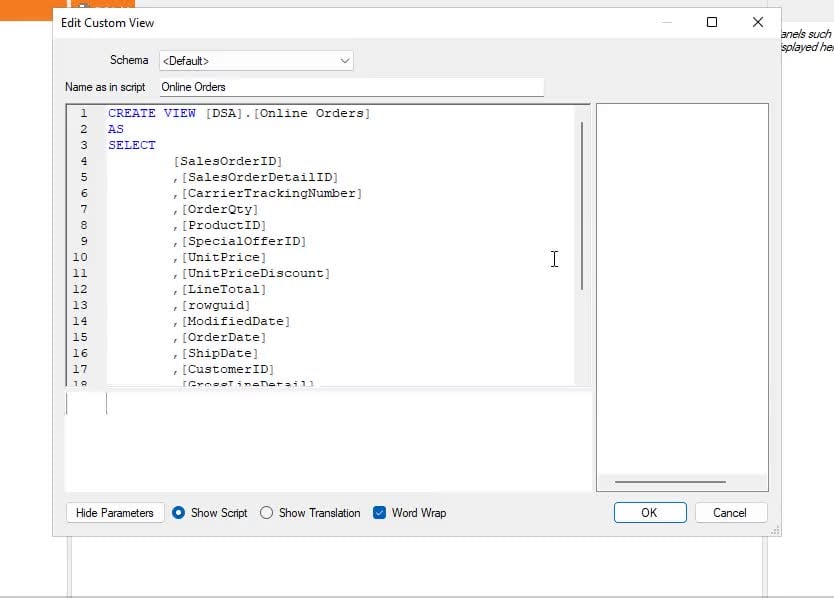
- Drag
SalesOrderDetailonto the Views node. - Name the view
Online Orders. - Add this
WHEREclause to the create-view statement:
- Deploy the view.
- Right-click the view → Read View Fields.
- Right-click the view → Map Custom View Fields.
- Click Auto-Map.
Reference: Custom Views · Use parameters in your scripts, views and calculations
Exercise
Import a table and transform data, using what you have learned:
- Add a new table,
PurchaseOrderDetail, from the Ingest instance to DSA, and preview it. - Transform the
RejectedQtyfield so all positive values become negative.
Quiz
Worth being able to answer these before the Solution Architect exam:
- How many transformations can you add to a field?
- What script language is used in the Custom Transformation window?
- Can you do multiple lookups on one conditional lookup field?
Next in the course
Finalize the Presentation Layer · Deliver Instance
Discussed in the community
Looking for related questions…
Didn't find your answer? Ask the community about this page — questions are answered by Timextender experts, partners and other users.