Finalize the Presentation Layer
The options for your Prepare layer, and why date dimensions matter.
In this module: moving tables from DSA to MDW · the date dimension · incremental load in the Prepare instance
What is the presentation layer?
Once data is cleaned, consolidated and modelled, it is made available to users. That final stage of the data warehouse is the presentation layer. Depending on the size and performance of your warehouse resources it can be a completely separate set of tables, or — to avoid duplicating data — you can leave the data where it is.
| Approach | Trade-off | How to do it |
|---|---|---|
| In-place presentation layer | Data is not moved again, so overall processing performance is better. Best when processing speed matters more than uptime. | Add a database schema named MDW. On each table you want to present: right-click → Table Settings → Table Schemas → Valid schema: MDW. |
| Separate data area | Separating cleansing and transformation from the presentation layer reduces the risk of it going offline during scheduled executions. Best when uptime matters more than processing speed. | Rename the data area to MDW and follow the steps below. |
Add the MDW data area
- Open the Prepare instance.
- Right-click Data Areas → Add Data Area.
- Enter the name
MDW. - Click OK.
Add tables from DSA to MDW
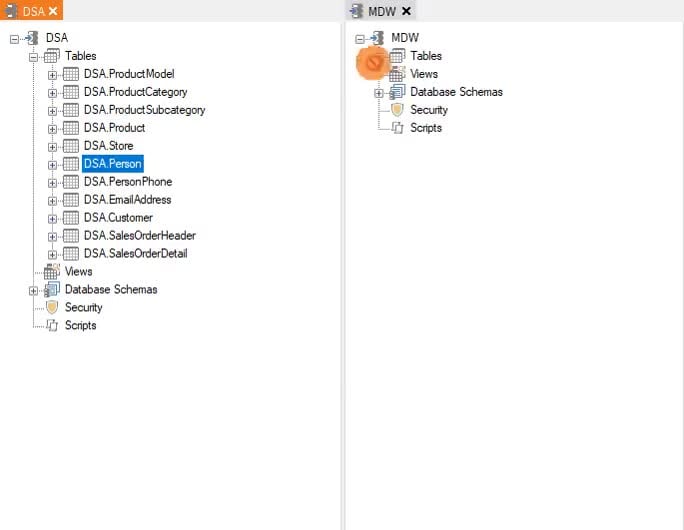
Add these tables to MDW:
ProductPersonCustomerSalesOrderDetail
Rename SalesOrderDetail
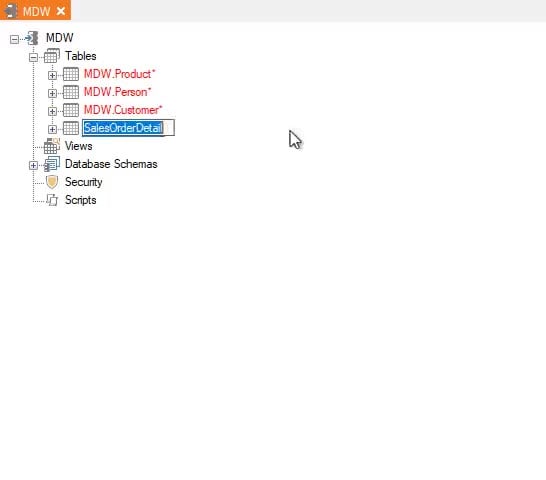
In MDW, rename SalesOrderDetail to SalesTransactions.
What is a date dimension?
A date dimension is a table that holds attributes about every day in a period — year, quarter, month, week, day of week, weekend or weekday, and so on. Like other dimensions, it makes it easy to filter or categorize fact data by date period, which allows efficient querying and analysis of time-based data.
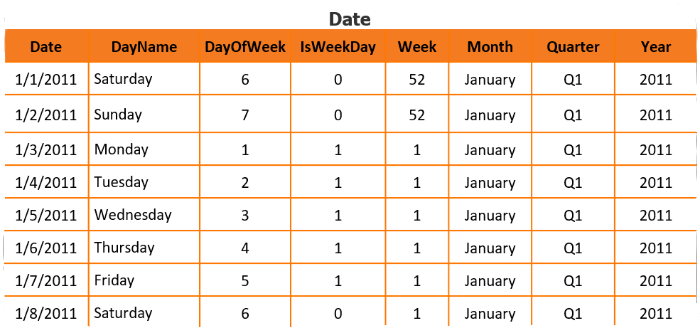
Filtering on a single date dimension attribute lets you answer:
- What were total sales for 2015?
- Do sales dip on Wednesdays?
- Did sales increase from Q1 to Q2?
Add a date table
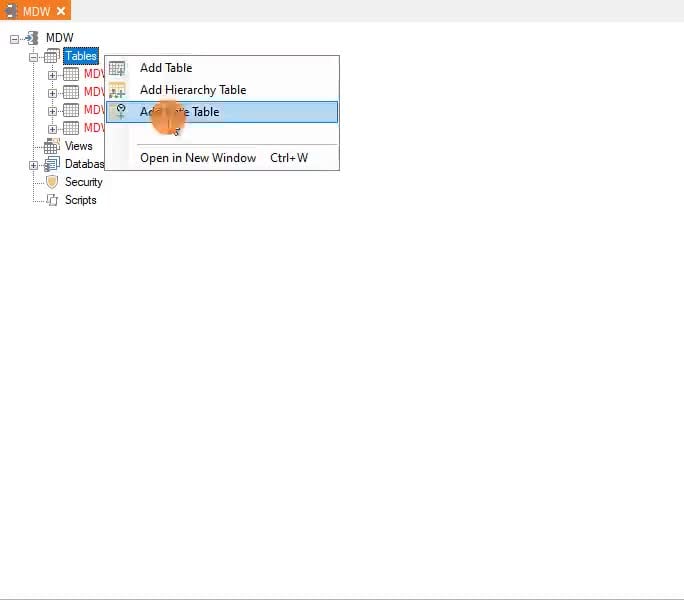
- In
MDW, right-click Tables → Add Date Table. - Name:
Date. - Start date:
2011-01-01. - Reorder the tables so the new
Datetable is first.
Reference: Date Table
Add date table relations
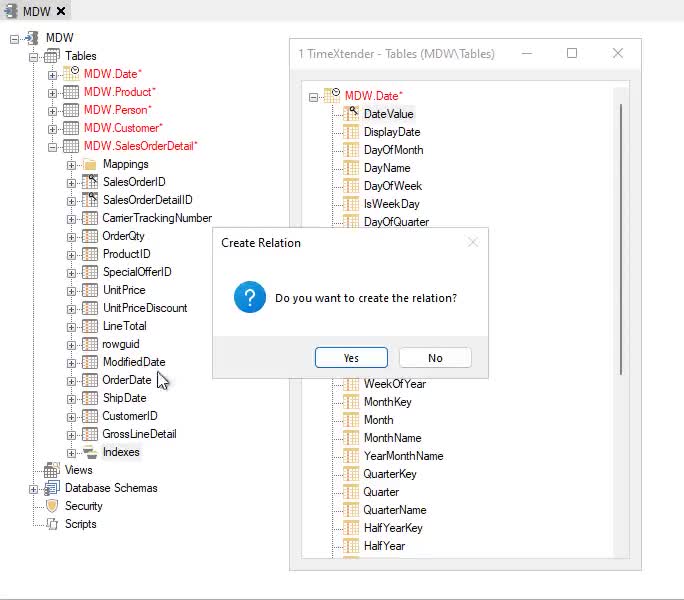
- Create a relation from
Date.DateValuetoSalesOrderDetail.OrderDate. - Create a relation from
Date.DateValuetoSalesOrderDetail.ShipDate.
Reference: Table relations · Incremental load in Prepare Instances
Next in the course
Deliver Instance · Semantic Model Endpoints
Discussed in the community
Looking for related questions…
Didn't find your answer? Ask the community about this page — questions are answered by Timextender experts, partners and other users.