Data Providers
The data provider component gives you a robust, easy way to connect to multiple data sources for quality control checks.
In this module: key concepts of the data provider · what the supported data providers are · connect and explore data · connect to a Business Central database · connect to an AdventureWorks SQL database
What is the data provider?
Data providers in Timextender Quality Control are the foundational connectors between your data sources and the quality monitoring framework. They ensure access to diverse data repositories, enabling real-time validation and quality assessment across systems.
To query data effectively, you need to set up data providers. That means connecting to whichever data provider you choose — the steps below establish these connections so you can access and query your data sources.
Training credentials
The two exercises below use shared read-only training databases. The host names, catalogs and user names are reproduced here; get the passwords from the source module or your Timextender contact rather than storing them in documentation.
Connect to Business Central
- Right-click Data Provider → New → Data Provider.
- Select the data provider from the Data source drop-down. By default it is Transact-SQL.
- Enter a title and description.
- Enter the credentials:
- Host:
txtraining.database.windows.net - Initial Catalog:
BusinessCentral Demo - User Name:
txlogin - Password: from the source module
- Host:
- Generate the connection string, save, and test the connection.
Tip
If you get an error, type the initial catalog name, host name, user name and password by hand so no special characters get added.
Connect to AdventureWorks
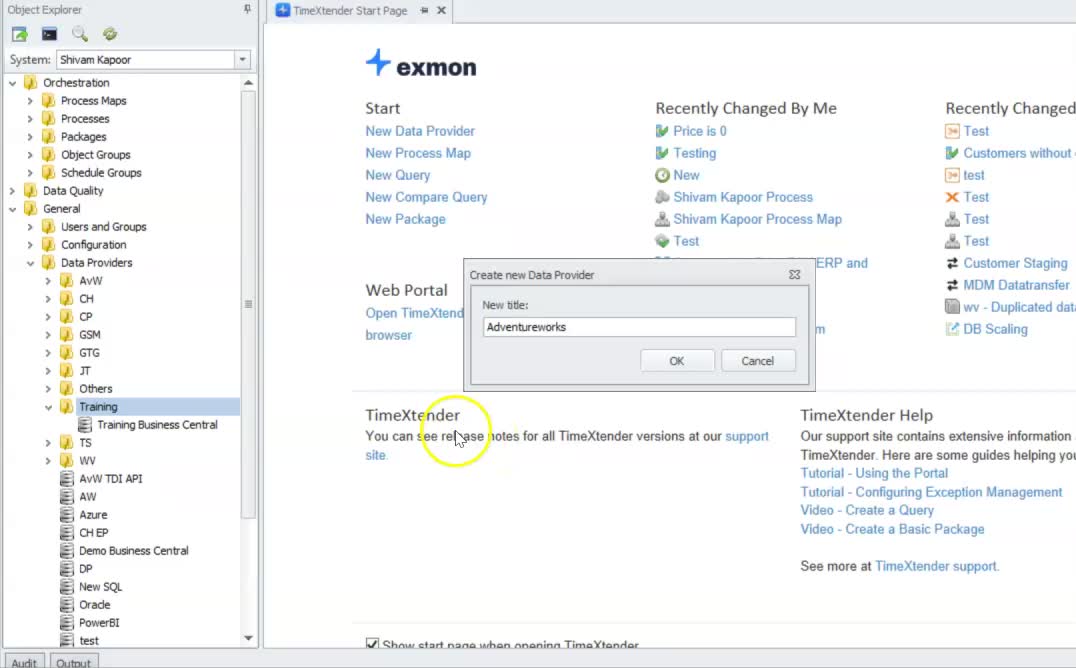
- Right-click Data Provider → New → Data Provider.
- Select the data provider from the Data source drop-down. By default it is Transact-SQL.
- Enter a title and description.
- Enter the credentials:
- Host:
mp77op1ebc.database.windows.net,1433 - Initial Catalog:
AdventureWorks - User Name:
tx_training_readonly - Password: from the source module
- Host:
- Generate the connection string, save, and test the connection.
Tip
If you get an error, type the initial catalog name, host name, user name and password by hand so no special characters get added.
Related reference
- What is Data Quality — the concepts behind these connections.
- Query Control — the next module: build a check on the data you just connected.
Discussed in the community
Looking for related questions…
Didn't find your answer? Ask the community about this page — questions are answered by Timextender experts, partners and other users.