Query Control
Timextender Orchestration & Data Quality 24.1+cloudon-premise
How to create quality checks and manage the exceptions they generate.
In this module: add and format queries · create notifications and add properties · finalize and schedule tests · compare and map data · preview, validate and look up values
Create a query control
- Open Data Quality in Solution Explorer.
- Right-click Tests → New → Query.
- Enter the name
Customer Missing Name. - Select Training Business Central from the Data Provider drop-down.
- Enter the query below.
- Click the save icon to save the query.
SELECT No_, Name, Address, City, [Territory Code]
FROM [training].[Cronus Canada, Inc_$Customer]
WHERE [Address] IS NULL OR [Address] = ' '
Column formatting
- Open the quality control query you created under Tests in Solution Explorer.
- Run the saved query.
- In the Properties explorer on the right, select Edit — Column Formatting → Edit.
- Select the
No_column and edit its caption toCustomer No.. - Click Save.
Create a notification
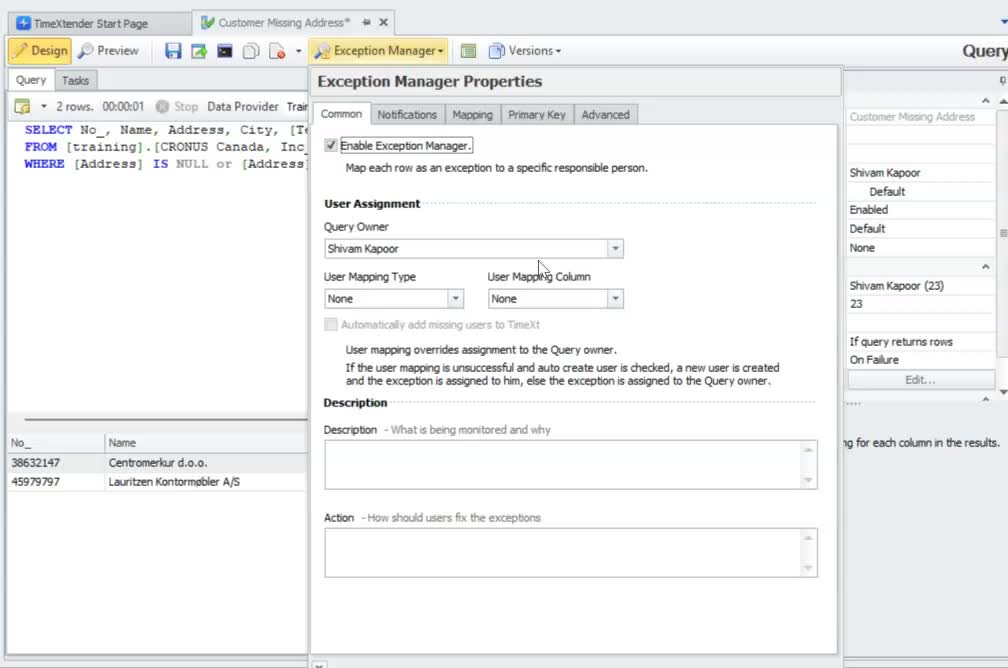
- Go to Exception Manager.
- In the first tab (Common), enable the Exception Manager.
- Make sure you are the query owner.
- Add a description and action.
- Go to the Notification tab, click Add Notification and choose Email.
- Send exception emails on New and Open.
- Go to the Primary Key tab, choose Custom and check
No_. - Click outside the window to close it, and save.
Testing the notification
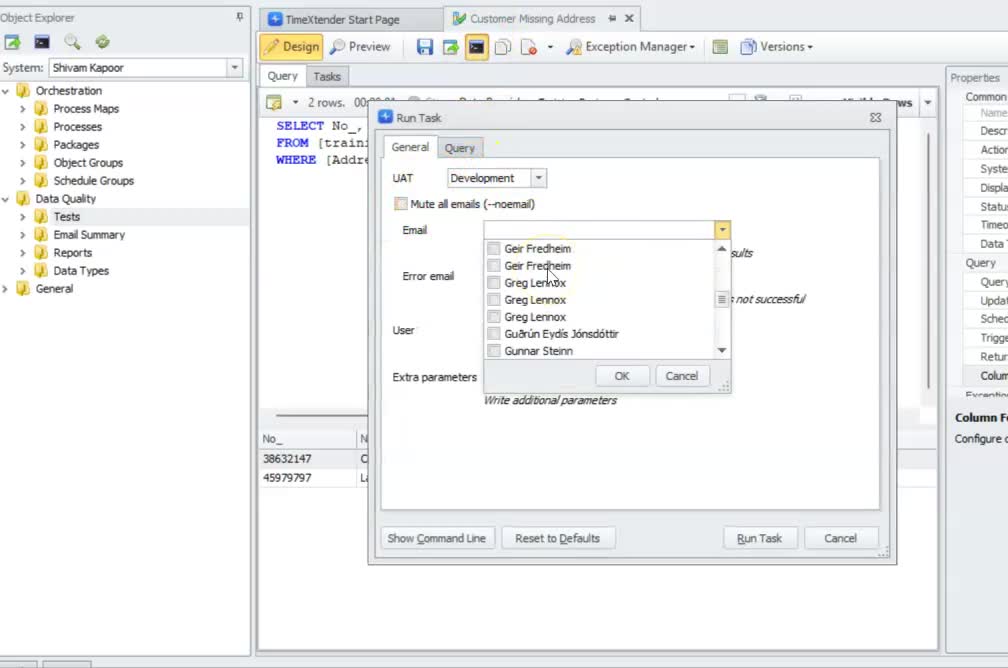
- Click the Run button.
- Make sure the UAT is set to Development.
- Make sure the Mute all emails checkbox is unchecked.
- In the select box behind Email, choose your own name.
- Click Run.
- Check your own inbox to see whether you get an email with all missing addresses.
Add additional properties
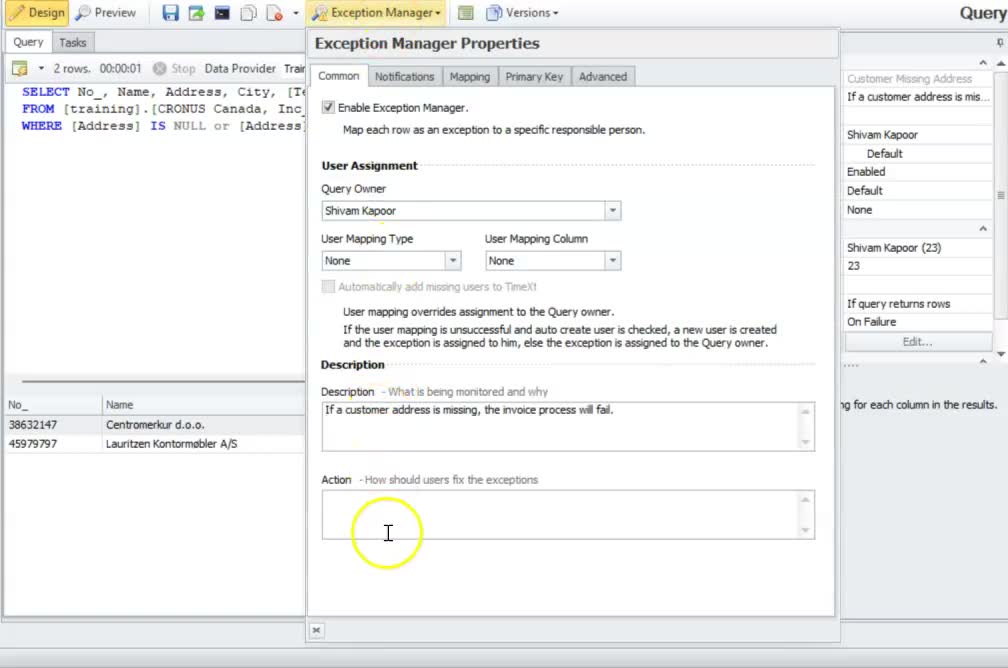
- Go to Exception Manager.
- Open the first tab (Common).
- In Description and Action, describe what the test monitors and its business impact — and what the exception owner is supposed to do to resolve the issue.
- Enter the description "If a customer address is missing, the invoice process will fail".
- Enter the action "Please update the customer card in Business Central".
Finalize the test
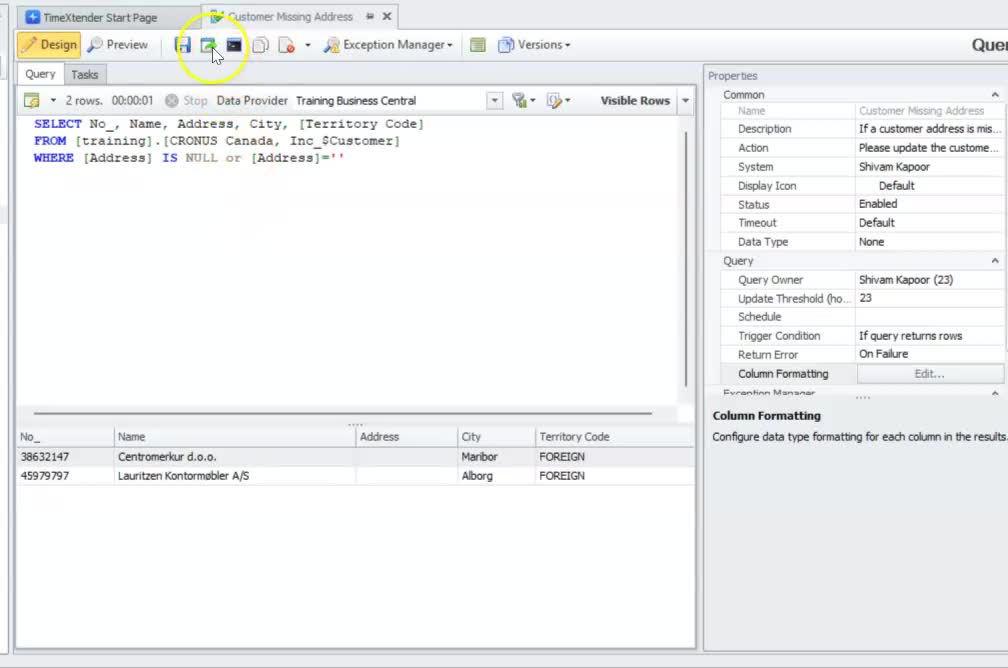
- Make sure the query
Customer Missing Addressis still open. - Click the Deployment button in the toolbar.
- Ensure Development to Production is selected, if Deployment Mode is an option.
- Click Deploy.
Related reference
- Data Providers — the connection this check queries through.
- What is Data Quality — the three control types explained.
Discussed in the community
Looking for related questions…
Didn't find your answer? Ask the community about this page — questions are answered by Timextender experts, partners and other users.